Step 03 · once
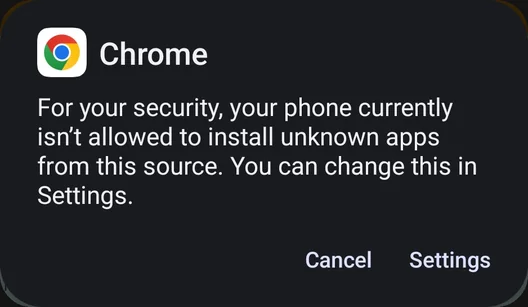
Installation permission
Tap "Settings".

The first step of the Luman project environment: save the links, videos and articles you want to come back to — material for your ideas and future projects.
The app is available in English and Russian.
DOWNLOAD APKHow to use it — guideInstall on iPhone
Luman Links stores nothing in the cloud. Everything you've saved is kept only in this app. If you uninstall the app, everything you've saved disappears with it.
Download the new APK from this page and open it. Android will ask "Do you want to update this app?" — tap "Update". Your data stays where it is. There's no need to uninstall the old version.
Every now and then, tap Save a copy in the app (the "Service" screen) and send the file to yourself via "Share" — to Telegram Saved Messages, email or cloud storage. The copy is kept only where you sent it; from it you can restore everything you've saved, even on a new phone. A copy is your only safety net: if your data is lost, the only way to get it back is from a file you saved yourself.
During beta testing the app is distributed directly as an APK (an Android installation package), not through Google Play.
Tap the download button at the top of the page.
Find the downloaded APK on your phone and open it.
If Android asks for permission to install from this source, allow it.
Confirm the installation. If Play Protect appears, see below.
Open Luman Links and use it in everyday situations.
Android will ask a few times — it does this with any app that doesn't come from Google Play. Below are real screens from a Xiaomi phone; on other phones the wording differs slightly, but the order is the same. If your browser warns while downloading that the file may be harmful, tap "Download".
Tap "Settings".
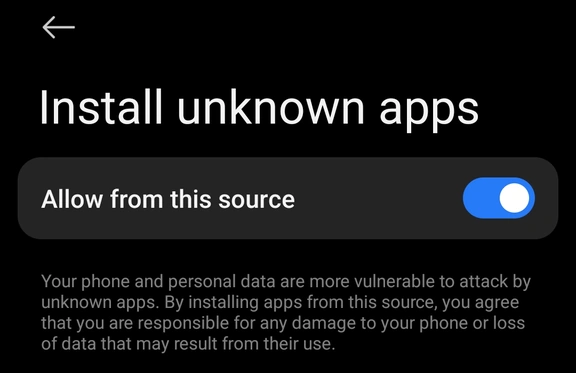
"Allow from this source" — then go back. You won't be asked again for future updates.
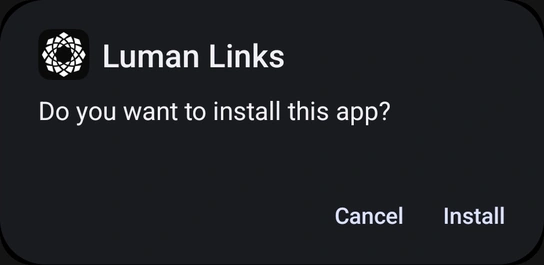
Android asks whether to install Luman Links — tap "Install".
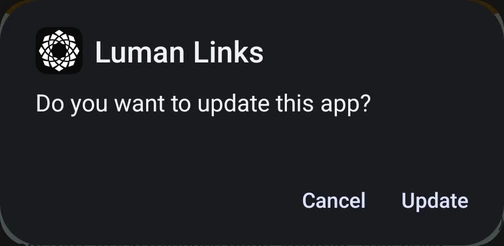
The first time it says "Install"; for a new version, "Update". Your data is kept when you update.
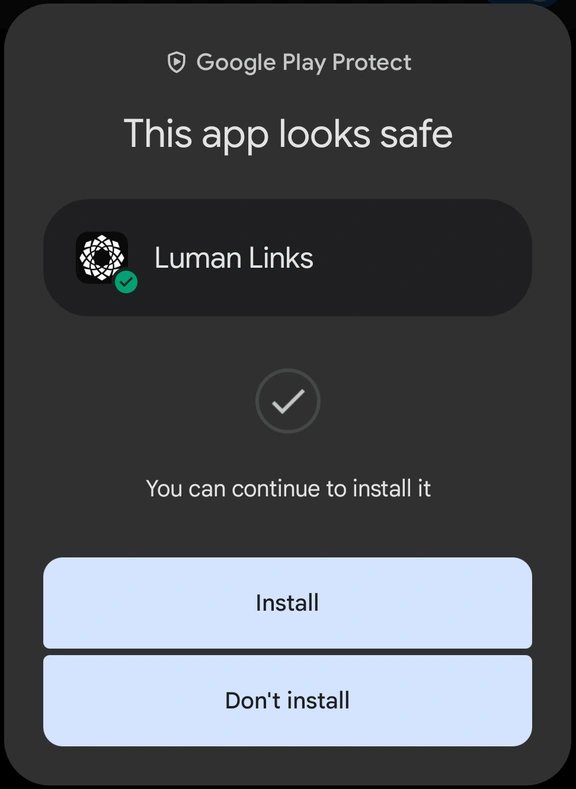
Google Play Protect checks the app — wait and tap "Install". If it shows a warning instead: "More details" → "Install anyway".
After installing. Not getting reminders when the app is closed (Xiaomi, Redmi, POCO)? Turn on "Autostart" for Luman Links: Settings → Apps → Permissions → Autostart. If reminders stop after an update, check that it's still on.
Google Play Protect checks apps that go through Google's store. During the beta, Luman Links is distributed directly, so Google has no information about it — and the system honestly says so.
There are two ways to make sure you have our file. Download it only from this page. And if you like, compare the SHA-256 checksum (how to do it is below). All versions are signed with the same key, so an update will install over the old version only if it really comes from us.
There are no automatic updates. We'll announce new versions in the beta Telegram group, and the file will appear on this page.
From this page, with the button at the top. The version number is in the file name.
The app updates, and everything you've saved stays.
Uninstalling erases all your data. The new version installs right over the old one.
SHA-256 is a file's "fingerprint": a long string that changes if even one byte of the file changes. If your file's fingerprint matches the one published below, it's the same file we released.
Fingerprint of the current build ():
On a Windows computer, in the folder with the downloaded file:
certutil -hashfile luman-links.apk SHA256On macOS or Linux:
shasum -a 256 luman-links.apkOn a phone, any checksum calculator app from Google Play will do. Compare the result with the fingerprint above.
Every build released on this page, with its number and what changed in it. The current one is at the top.
The detailed questions don't get in the way of installing — they're hidden and only needed after real use.
Version news is posted there, and that's also where feedback goes. If something broke, write what you were doing, what happened and your phone model, and attach a screenshot.
Open the group in Telegram